Siri AI in iOS 27: What’s New, Which iPhones Get It and How to Use It
Updating to iOS 27 doesn't switch on Apple's new Siri. Here's which iPhones actually get Siri AI, how to join the waitlist, what to ask it first, and when ChatGPT or Gemini is still the better choice.
Published: September 29, 2026 | Updated: September 29, 2026
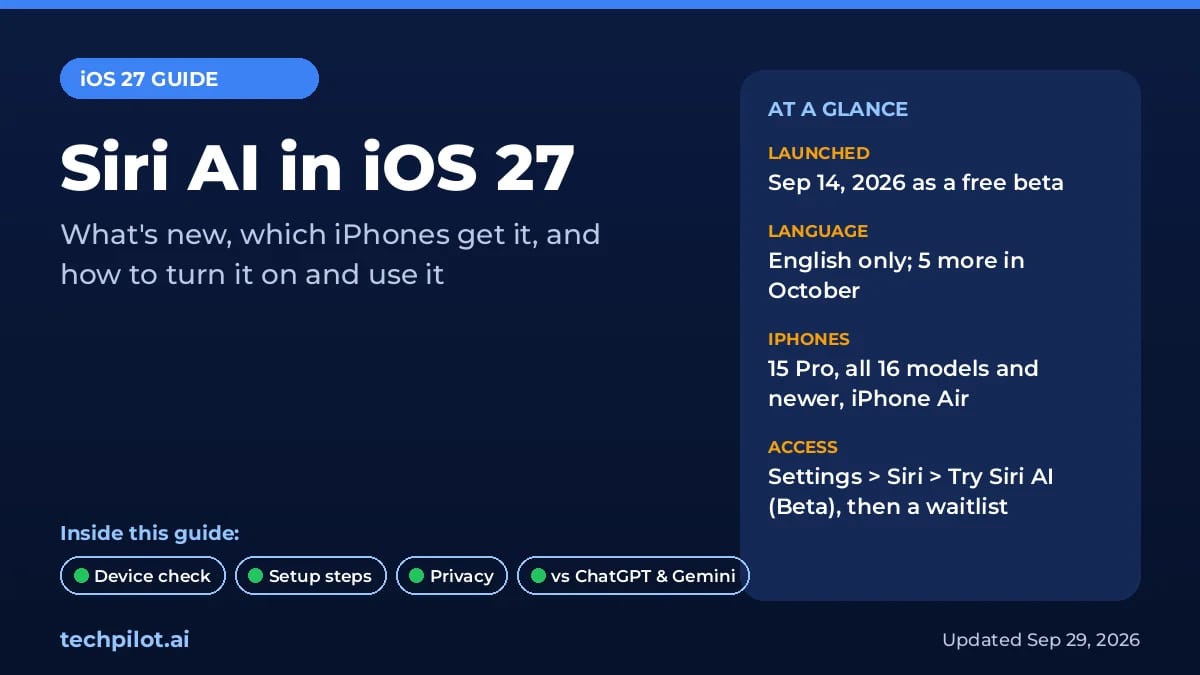
Siri AI is Apple’s rebuilt, chatbot-style Siri in iOS 27. It can search your messages and email, understand what’s on your screen, take actions inside apps and answer almost any question using the web. It launched on September 14, 2026 as a free, English-only beta. You need an iPhone 15 Pro or newer (or an M1-or-later iPad or Mac), and you have to join a waitlist under Settings > Siri > Try Siri AI (Beta) before you can use it.
Updating to iOS 27 doesn’t switch the new Siri on, and many iPhones that run iOS 27 can’t use it at all. Below: what the new Siri actually does, which devices qualify, how to turn it on, what to ask it, and when ChatGPT or Gemini is still the better pick.
Last updated: September 29, 2026 (UTC+7). Siri AI is still in beta and Apple is adding languages in October. We will update this guide as Apple changes availability.
Key takeaways
Free, but a beta: English only for now; French, Japanese, Korean, Portuguese and Spanish are due in October 2026.
iOS 27 isn’t enough: it runs on iPhone 11 and newer, but Siri AI needs iPhone 15 Pro, any iPhone 16 or later, or iPhone Air.
Opt in and wait: Settings > Siri > Try Siri AI (Beta) puts you on a waitlist; it downloads automatically when you’re in.
Not everywhere: unavailable on iPhone, iPad and Apple Watch in the EU, with mainland China accounts, and for users under 13.
Its edge is your data: personal context and app actions beat ChatGPT and Gemini on iPhone; for long research or coding, a chatbot still does more.
What is Siri AI?
Siri AI is what Apple calls “an entirely new version of Siri.” It runs on the next generation of Apple Intelligence. Apple rebuilt it from the ground up on new Apple Foundation Models, which it says were “custom-built in collaboration with Google and its Gemini models.” These models run both on your device and on Apple’s own servers through Private Cloud Compute.
Apple previewed it at WWDC on June 8, 2026 and shipped it in beta on September 14. Unlike the old Siri, you can talk or type naturally, ask follow-ups and turn almost any answer into a longer conversation.
It’s Apple’s biggest step yet toward the personal AI agents that act for you instead of just answering.
Siri AI can find things across Messages, Mail, Calendar, Notes, Reminders, Photos and more. In Apple’s example, Siri finds a relative’s message about baking a family recipe, pulls the instructions from an old email and adds the ingredients to Reminders. Apple says the index it uses for this works entirely on device.
Onscreen awareness
Ask about whatever is on your screen and act on it. On iPad and Mac you can also Control-click an image, file or text to ask about it.
App actions
Siri can do more inside apps: send messages, create events, edit and share photos, draft email. It already works with some third-party apps. Apple mentions texting a friend in WhatsApp and playing a book on Audible. Apple says drafting an email in Microsoft Outlook, searching Notability, and adding a restaurant to Tripsy are coming “soon.”
Broad world knowledge
Siri AI can pull current information from the web and write a full answer instead of a list of links. On iPad and Mac it’s built into Spotlight.
A dedicated Siri app
A new Siri app keeps your past conversations and syncs them through iCloud, so a chat started on iPhone continues on Mac, iPad, Apple Watch or Vision Pro. It can also generate images with Image Playground.
Write with Siri
Describe what you need and Siri can write a draft from scratch, edit your text or give feedback “virtually anywhere you type.” In Mail and Messages, Apple says it can match the tone you usually use with each person.
Visual Intelligence in the Camera
A new Siri mode in the iPhone Camera app lets you point at something and act on it, such as turning a festival poster into calendar events. iPhone and iPad also support the screenshot gesture, and Mac has a keyboard shortcut.
Expressive voices and better dictation (newest devices only)
You can tune Siri’s pace and expressiveness, and dictation now handles punctuation and formatting as you talk. Both need Apple’s AFM Core Advanced on-device model, which only the newest devices have (see the table below).
Which iPhones get Siri AI?
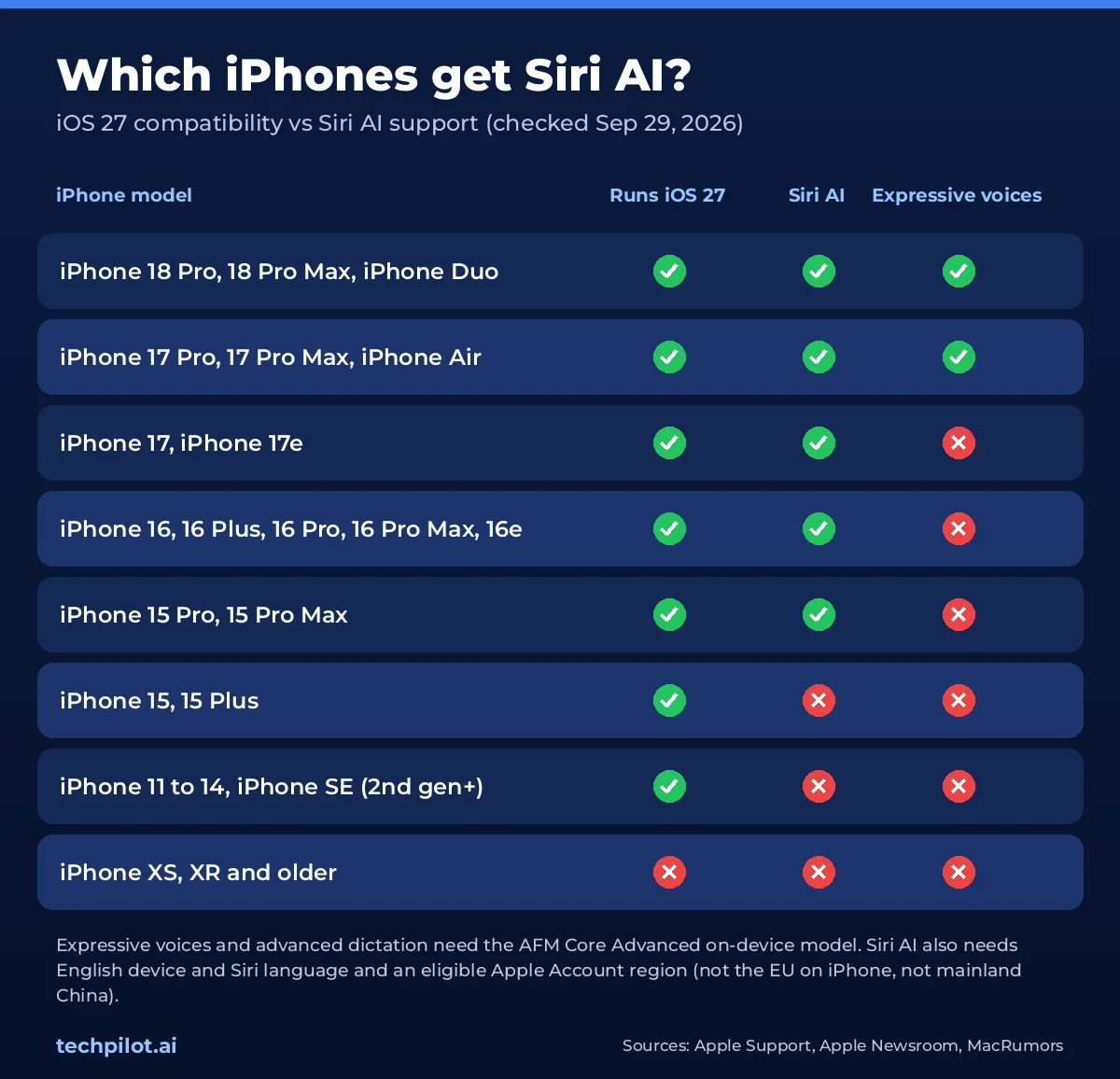
This is where most confusion starts. The devices that can install iOS 27 and the devices that can run Siri AI are two different lists. According to MacRumors, iOS 27 supports the same iPhones as iOS 26: the iPhone 11 series, iPhone SE (2nd generation) and later. Siri AI needs an Apple Intelligence-capable model.
iOS 27 runs on iPhone 11 and newer, but Siri AI needs iPhone 15 Pro or later. Sources: Apple, MacRumors.
iPhone model
Runs iOS 27
Siri AI
Expressive voices & advanced dictation
iPhone 18 Pro, 18 Pro Max, iPhone Duo
✅ Yes
✅ Yes
✅ Yes
iPhone 17 Pro, 17 Pro Max, iPhone Air
✅ Yes
✅ Yes
✅ Yes
iPhone 17, iPhone 17e
✅ Yes
✅ Yes
❌ No
iPhone 16, 16 Plus, 16 Pro, 16 Pro Max, 16e
✅ Yes
✅ Yes
❌ No
iPhone 15 Pro, 15 Pro Max
✅ Yes
✅ Yes
❌ No
iPhone 15, 15 Plus
✅ Yes
❌ No
❌ No
iPhone 11 to 14 series, iPhone SE (2nd gen and later)
✅ Yes
❌ No
❌ No
iPhone XS, XR and older
❌ No
❌ No
❌ No
Not sure which model you have? Open Settings > General > About and check the Model Name. Siri AI and the new Apple Intelligence models also need space. Apple says they can take up to 14 GB on iPhone 17 Pro, 17 Pro Max and iPhone Air (and the equivalent high-end iPad, Mac and Vision Pro models), and up to 8 GB on other supported devices.
iPad, Mac, Apple Watch and Vision Pro
iPad: iPad mini (A17 Pro) and any iPad with M1 or later, on iPadOS 27.
Mac: MacBook Neo (A18 Pro) and any Mac with M1 or later, on macOS 27 Golden Gate.
Apple Watch: Series 9 or later, Ultra 2 or later, and SE 3 on watchOS 27. The watch must be paired with an iPhone that has Siri AI turned on.
Apple Vision Pro: any model, on visionOS 27.
Siri AI availability: languages, regions and age limits
Even with the right iPhone, three other things decide whether you can turn Siri AI on:
Language: Siri AI currently works in English only. Your device language and your Siri language both have to be set to the same supported language. Apple says French, Japanese, Korean, Portuguese and Spanish arrive in October 2026 but hasn’t named a date or software version.
Apple Account region: Siri AI isn’t available on iPhone, iPad or Apple Watch in the EU. EU users can use it on macOS 27 and visionOS 27 with both languages set to English. It won’t work if your Apple Account region is mainland China. Eligibility depends on your account region, not where you are standing. Once it’s on, Apple says it keeps working when you travel.
Age: Siri AI is not available to users under 13.
Apple blames the EU delay on the Digital Markets Act, and the European Commission disputes Apple’s interpretation, Macworld and Engadget report. There’s no EU date for iPhone yet.
How to turn on Siri AI (step by step)
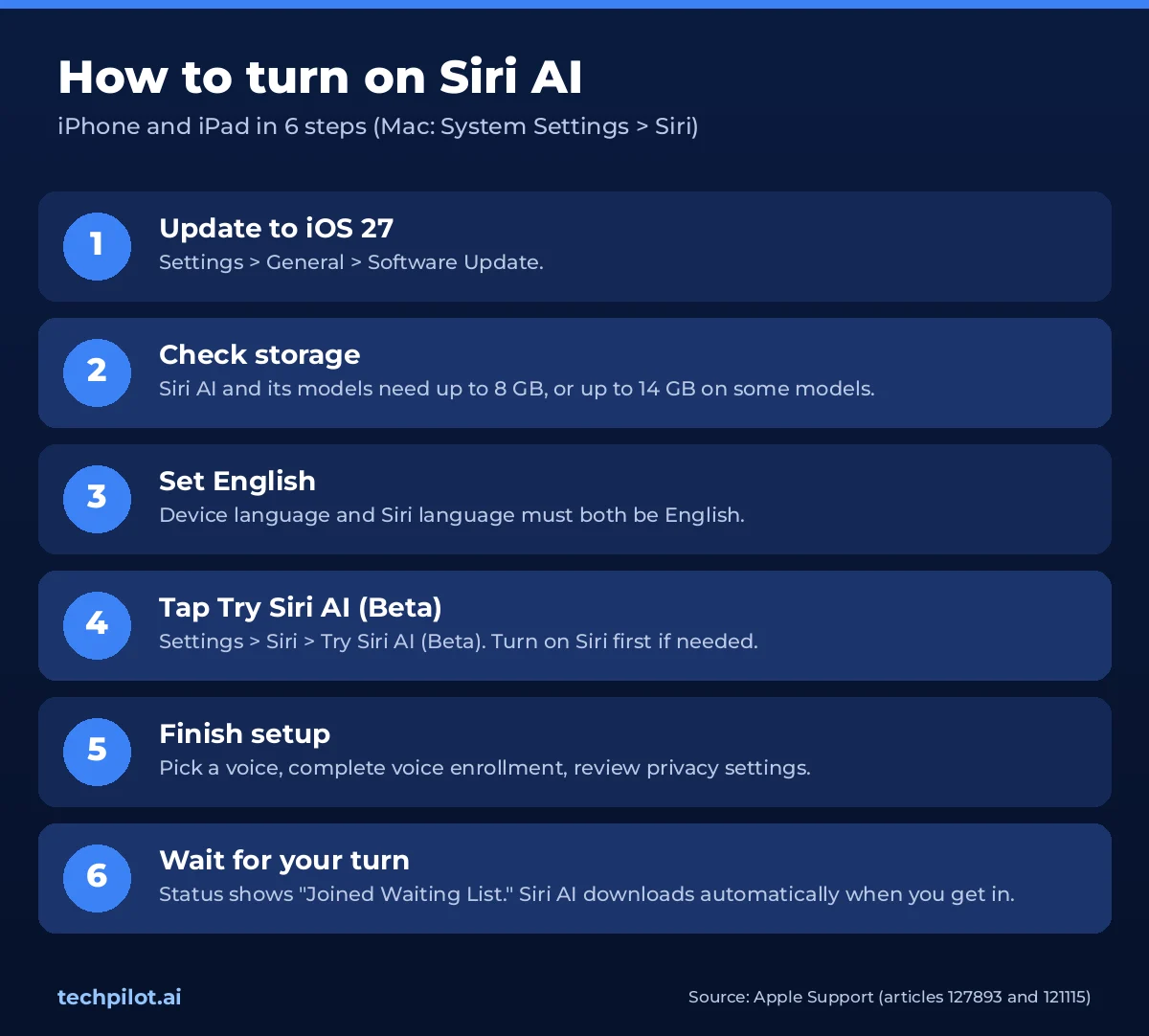
Siri AI is opt-in: you join a waitlist from Settings > Siri.
On iPhone or iPad
Update: Settings > General > Software Update, then install iOS 27 or iPadOS 27.
Check storage: Settings > General > iPhone Storage. Free up space if you have less than the 8–14 GB Apple lists for your device.
Set English: make sure your device language and Siri language are both English.
Join the waitlist: open Settings > Siri and tap Try Siri AI (Beta). If Siri is off, tap Turn On Siri first.
Finish setup: pick a voice, complete voice enrollment and review your privacy settings. The status changes to “Joined Waiting List.”
Wait for the notification: when your turn comes, Siri AI downloads automatically. Keep the device on Wi-Fi and charging to speed things up.
On Mac
Update to macOS 27 Golden Gate, then open System Settings > Siri and click Try Siri AI (Beta). The steps are the same as on iPhone.
On Apple Watch and Vision Pro
Apple Watch gets Siri AI through a paired iPhone that already has it switched on. On Vision Pro, update to visionOS 27 and use the same Siri setting.
How long is the Siri AI waitlist?
Apple only says “wait times can vary.” Macworld and Engadget report waits from minutes to days; Engadget says the waitlist spreads demand on Apple’s servers. If your iPhone shows “Optimizing Search and Siri,” it’s building the on-device index Siri AI uses. That works best when the phone is locked, charging and on Wi-Fi.
Don’t see “Try Siri AI (Beta)”? Check these
Your iPhone isn’t on the supported list. The iPhone 15 and 15 Plus, for example, are not.
Your device or Siri language isn’t set to English. Engadget suggests switching to English (United States).
Your Apple Account region is in the EU (iPhone, iPad, Watch) or mainland China.
You aren’t on iOS 27 yet, or the account belongs to someone under 13.
You tested an earlier beta. AppleInsider reports that former beta testers have to join the waitlist again.
How to use Siri AI: 8 things to try first
On iPhone, you can start Siri AI by saying “Hey Siri,” pressing the side button, or swiping down from the Dynamic Island. On iPad and Mac you can also type into Spotlight. Every example below matches a capability Apple documents. Results will depend on what’s actually in your apps.
Find something buried in a chat: “What restaurant did Sam recommend last month?”
Chain apps together: “Find the recipe Mom emailed me and add the ingredients to my grocery list.”
Ask about your screen: “Summarize this article” or “Explain this chart.”
Turn a poster into plans: open Siri mode in the Camera app, point it at an event poster and ask Siri to add the dates to your calendar.
Draft a reply in your tone: “Write a friendly reply to Alex saying I can’t make Friday.”
Edit and share a photo: “Clean up this photo and send it to Jordan.”
Use a third-party app: “Text Priya on WhatsApp that I’m running late,” or “Play my Audible book.”
Get a real answer from the web: “What’s the difference between a Roth IRA and a traditional IRA?” Then ask follow-ups.
For better answers, give Siri the same kind of context you’d give a person: names, dates and the app you mean. The prompting habits in our guide to getting reliable answers from ChatGPT work just as well here.
Is Siri AI private? What happens to your data
Apple calls Siri “the world’s most private digital assistant.” That’s Apple’s own claim; here is what it actually documents:
On-device first: simpler requests are handled on your device. The Spotlight index and App Toolbox that Siri uses for personal context work entirely on device.
Private Cloud Compute for harder requests: more complex requests go to Apple’s servers. Apple says that while Private Cloud Compute handles a request, your personal data “is not stored nor made accessible to Apple or anyone else,” and that outside experts can verify this.
Google builds the models, not the pipeline: the new models were built with Google’s Gemini team, but Apple says they run on device and on Apple’s Private Cloud Compute. Apple doesn’t say that your requests go to Google.
Conversation history syncs through iCloud: the Siri app keeps your chats. Tom’s Guide reports a Settings > Siri > Keep Conversations option that you can change from Forever to 30 Days or 1 Year. You can also delete individual chats in the app.
Improve Siri & Dictation is opt-in: Apple’s Siri privacy page says your audio isn’t stored unless you opt in. Request transcripts are tied to a random, rotating identifier, not your Apple Account, and can be kept for up to two years to improve Siri.
If you turn on the ChatGPT extension, requests you send to ChatGPT follow OpenAI’s rules, not Apple’s. For more on how assistants handle what you share, read our guide to AI agent data privacy.
Siri AI limits: usage caps, beta bugs and cost
Daily usage limits: features that rely on Apple’s servers, including Siri AI, have daily limits. These can vary with “request complexity, system demand” and other factors. Apple hasn’t published the actual numbers.
Paid tier coming: Apple says expanded access “will be available for a fee in the future.” Engadget reports Apple mentioned iCloud+ plans for this. Pricing and timing aren’t announced.
It’s a beta: expect rough edges, and some app integrations (Outlook, Notability, Tripsy) are still “soon.”
Siri AI vs ChatGPT vs Gemini on iPhone
You don’t have to choose just one. Siri AI wins on your phone and your own data; ChatGPT and Gemini still win on long, open-ended work. The table sticks to what each company documents.
Yes: “Hey Siri,” side button, Dynamic Island, Camera
Separate app; also an optional extension inside Siri
Separate app
Searches your Messages, Mail and Calendar
Yes, through personal context
No; only what you paste, upload or connect
No access to Apple apps; works with Google apps you connect
Takes actions in iPhone apps
Yes: Apple apps plus supported third-party apps (e.g. WhatsApp, Audible)
Not systemwide
Not systemwide
Sees what is on your screen
Yes, systemwide
Only content you share with it
Only content you share with it
Your chats and AI training
Apple says Private Cloud Compute data is not stored or accessible to Apple; Improve Siri & Dictation is opt-in
Consumer chats can be used for training unless you turn off “Improve the model for everyone”
Used to improve Google AI while Keep Activity is on; a subset is read by human reviewers
Languages
English only; 5 more languages due in October 2026
Many languages
Many languages
Available on iPhone in the EU
No
Yes
Yes
Best for
Quick tasks involving your own data and apps
Long research, writing, files and coding
Heavy Google Workspace users; research
Using ChatGPT inside Siri AI
The ChatGPT integration is still in iOS 27. According to iDownloadBlog, the setting now sits under Settings > Siri (Extensions > ChatGPT). In the Siri app, touch and hold the “Ask Siri” field, tap Ask and pick ChatGPT. The choice resets to Siri AI with each new chat. No OpenAI account is needed, and Apple’s guide says Siri asks before sending photos or files to ChatGPT.
Bloomberg reported earlier this year that iOS 27 would open Siri to other chatbots such as Gemini and Claude. Apple’s launch materials don’t mention it, so treat that as unconfirmed for now. You can still install the Gemini or ChatGPT apps from the App Store.
Should you use Siri AI, ChatGPT or both?
If you want to…
Best choice
Why
Find something in your own messages, email or photos
Siri AI
Only Siri can search across Apple apps on your device
Send a text, add an event or edit a photo by voice
Siri AI
App actions are built in
Ask about what is on your screen
Siri AI
Onscreen awareness works systemwide
Write a long report, analyze a large file or write code
ChatGPT or Gemini app
Built for long, open-ended work
Work mostly in Gmail, Docs and Google Calendar
Gemini app
Connects to your Google account
Use AI on an iPhone 15, 14 or older
ChatGPT or Gemini app
Siri AI needs iPhone 15 Pro or newer
Use AI on iPhone in the EU or with a China account
ChatGPT or Gemini app
Siri AI is not available there yet
If privacy is your main concern and you want a chatbot outside Apple’s ecosystem, privacy-focused assistants like Proton’s Lumo are also worth a look.
What is Siri AI?
Siri AI is Apple’s rebuilt version of Siri, powered by the next generation of Apple Intelligence. It launched in beta with iOS 27, iPadOS 27, macOS 27, watchOS 27 and visionOS 27 on September 14, 2026. It can search your messages, email and other apps for personal context, answer questions about what’s on your screen, take actions in apps, and answer general questions using information from the web. A new Siri app keeps your conversation history in sync across your devices.
Which iPhones support Siri AI?
Siri AI works on iPhone 15 Pro and 15 Pro Max, every iPhone 16 model and later, and iPhone Air, all running iOS 27. iOS 27 also installs on the iPhone 11 through 14 series, iPhone 15 and 15 Plus, and iPhone SE (2nd generation and later), but those models don’t get Siri AI. Expressive voices and advanced dictation need even newer hardware: iPhone 17 Pro, 17 Pro Max, iPhone Air, iPhone 18 Pro, iPhone 18 Pro Max or iPhone Duo.
How do I turn on Siri AI in iOS 27?
First, update to iOS 27 and set both your device language and Siri language to English. Then open Settings > Siri and tap Try Siri AI (Beta). If Siri is off, turn it on first. Follow the prompts to pick a voice, complete voice enrollment and review your privacy settings. That puts you on a waitlist, and Siri AI downloads automatically when your turn comes. On a Mac, use System Settings > Siri.
Why don’t I have Siri AI yet?
The most common reasons are an unsupported iPhone, a device or Siri language other than English, or an Apple Account region in the EU or mainland China. You may also still be on the waitlist, which Apple says varies in length. Press reports mention waits from minutes to several days. Also check that you have enough free storage (up to 8 GB, or up to 14 GB on some models) and that the user is 13 or older.
Is Siri AI free?
Yes. Siri AI is free during the beta on supported devices. Features that use Apple’s servers, including Siri AI, have daily usage limits that depend on request complexity and system demand. Apple says expanded access “will be available for a fee in the future,” but it hasn’t announced pricing or a date.
Is Siri AI available in other languages and in the EU?
Right now Siri AI works in English only. Apple says French, Japanese, Korean, Portuguese and Spanish are coming in October 2026, but hasn’t given an exact date. In the EU, Siri AI isn’t available on iPhone, iPad or Apple Watch. EU users can use it on macOS 27 and visionOS 27 with English selected. It doesn’t work with mainland China Apple Accounts.
Does Siri AI use Google Gemini or ChatGPT?
Apple says the new Apple Foundation Models behind Siri AI were “custom-built in collaboration with Google and its Gemini models.” They run on your device and on Apple’s Private Cloud Compute servers, and Apple says personal data handled there isn’t stored or made accessible to Apple or anyone else. ChatGPT is separate: it’s an optional extension you can switch on in Siri settings and use when you want it.
Verdict: is Siri AI worth turning on?
Yes, if you have a supported device. Siri AI is free, opt-in, and the first Siri that genuinely connects your messages, email, calendar and apps. Personal context and onscreen help are things ChatGPT and Gemini can’t match on iPhone, because they can’t see inside your apps.
Keep expectations in check: it’s a beta, English-only until at least October, unavailable on iPhone in the EU and China, and capped by daily limits. iPhones older than the 15 Pro won’t get it, so check the table above before you upgrade just for Siri AI.
Our advice: join the Siri AI waitlist today and use it for everyday phone tasks. Keep ChatGPT or Gemini for longer research and writing. If you use the ChatGPT extension, set up your OpenAI privacy controls first.
Mike Paul, an authoritative author, specializes in AI tools, Education and Business productivity. With comprehensive knowledge and practical insights, his blog offers credible guidance on the latest advancements. Mike's expertise is evident in his clear and concise writing style, supported by real-world examples and case studies. As a trusted industry voice, he actively engages with professionals, fostering a vibrant community. With meticulous research and fact-checking, Mike ensures accurate and up-to-date information. His blog www.mikepaul.com serves as a reliable resource for leveraging AI tools effectively.
Share This Article
JOIN OUR COMMUNITY
Receive the latest AI insights directly to your inbox.